
Welcome to your Condo Partner dashboard. This guide walks through every part of the page — what each section shows, why it matters, and how to use it together to keep track of your commission. Tap any topic below to jump straight to it.
Every figure on your dashboard comes from one simple cycle: a guest buys commissionable products (wines, spirits, and other selected items) with one of your room codes, you earn commission on those items, it lands in your wallet, and you spend it. Each part of the page is just a different view of that same cycle.
So one order ripples across the whole page — the summary cards show your running totals, the Cashflow chart shows the month-to-month rhythm, the Recent activity feed lists every individual movement, and the room charts and table show which rooms drove it. Click into any room to see the same story for that one unit.
A quick tour runs the first time you sign in, walking you through each part of the dashboard. Tick Don't show this again if you'd rather not see it, or reopen it any time from the Take a tour button. Room pages have their own tour too.
Each complex has its own private login. Enter the username and password we provided. Your session stays active for about 8 hours, after which you'll simply log in again.
The purple banner at the top shows your complex name and address, and on the right your Current Balance — the store credit you have available to spend right now.
A small badge shows your account status: ✓ Account balanced means everything reconciles. If it reads reconciliation in progress, we're simply squaring up the books — nothing for you to do.

The row of cards summarizes your account. Each card has its title at the top and the figure below:
All figures are shown in KYD.

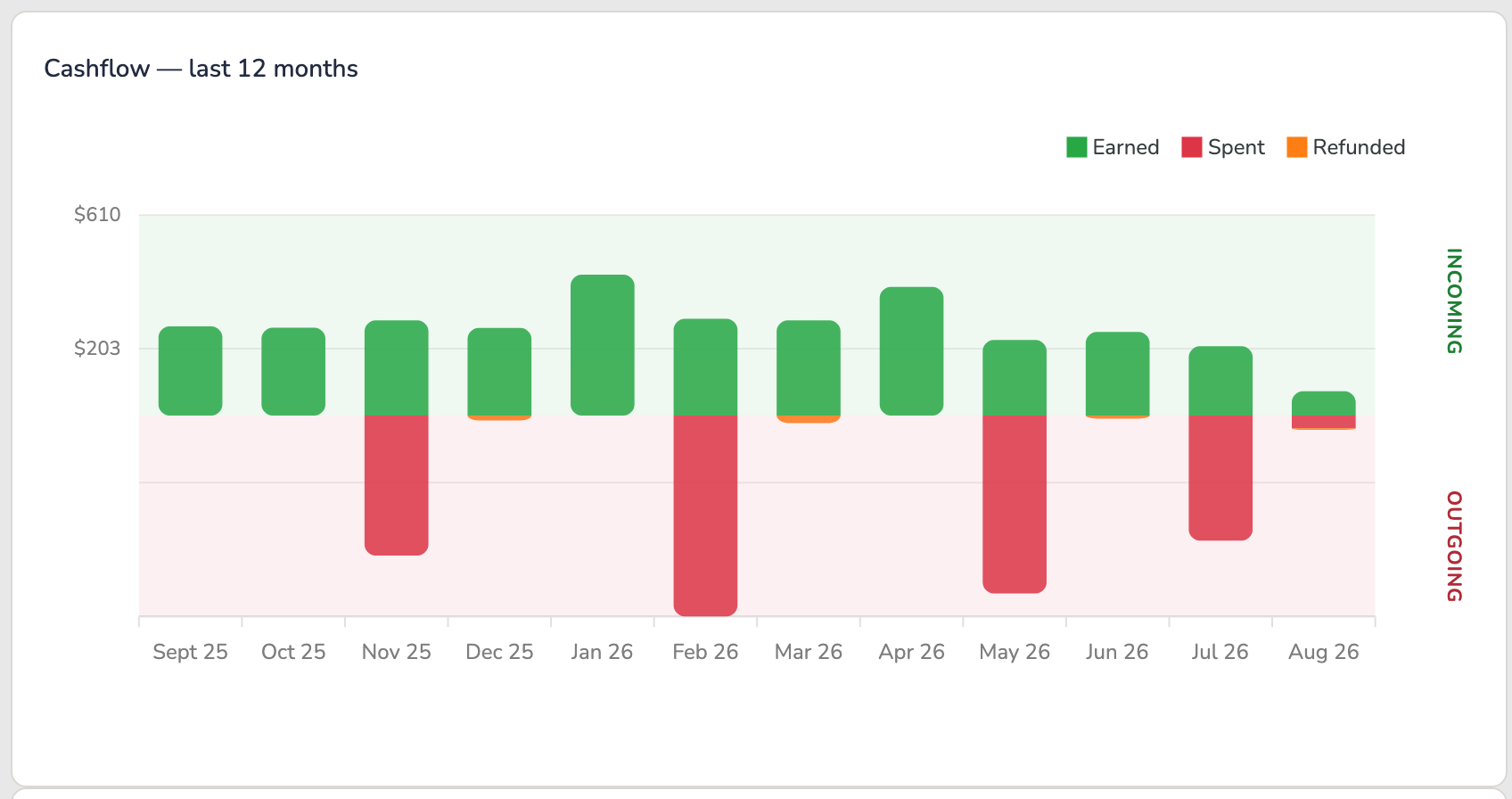
This chart shows money in versus money out each month. Green bars above the line (Incoming) are commission you earned. Red and orange bars below the line (Outgoing) are credit you redeemed and any refund clawbacks.
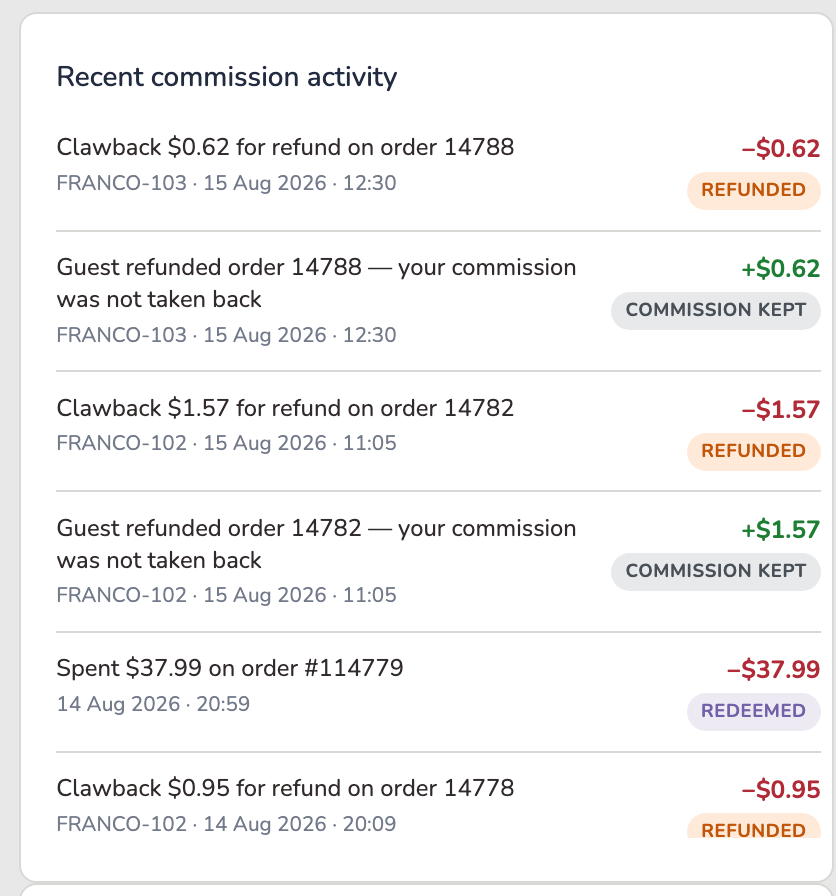
A running log of every transaction on your account — earnings, redemptions and refunds — with the newest at the top. Each entry has a colored status tag and the amount: + for money in, − for money out.
Every entry is one of four things, and the tag tells you which:
| EARNED | Money in. A guest used your room code, and your 5% has been paid into your wallet. |
| REDEEMED | Money out, by you. You spent some of your balance — at checkout, or as a cash-out. Nothing has gone wrong; this is the balance being used for what it's for. |
| REFUNDED | Money out, because a guest returned something. The order was refunded, so the commission that came from it is taken back. Also called a clawback. |
| PARTIAL REFUND | The guest returned part of an order. Only the commission on the returned items comes back; you keep the rest. |
You may occasionally see Processing — commission recorded but not yet confirmed into your wallet. It normally clears in seconds. If one sits there, tell us and we'll chase it.
Scroll inside the box to see older items.
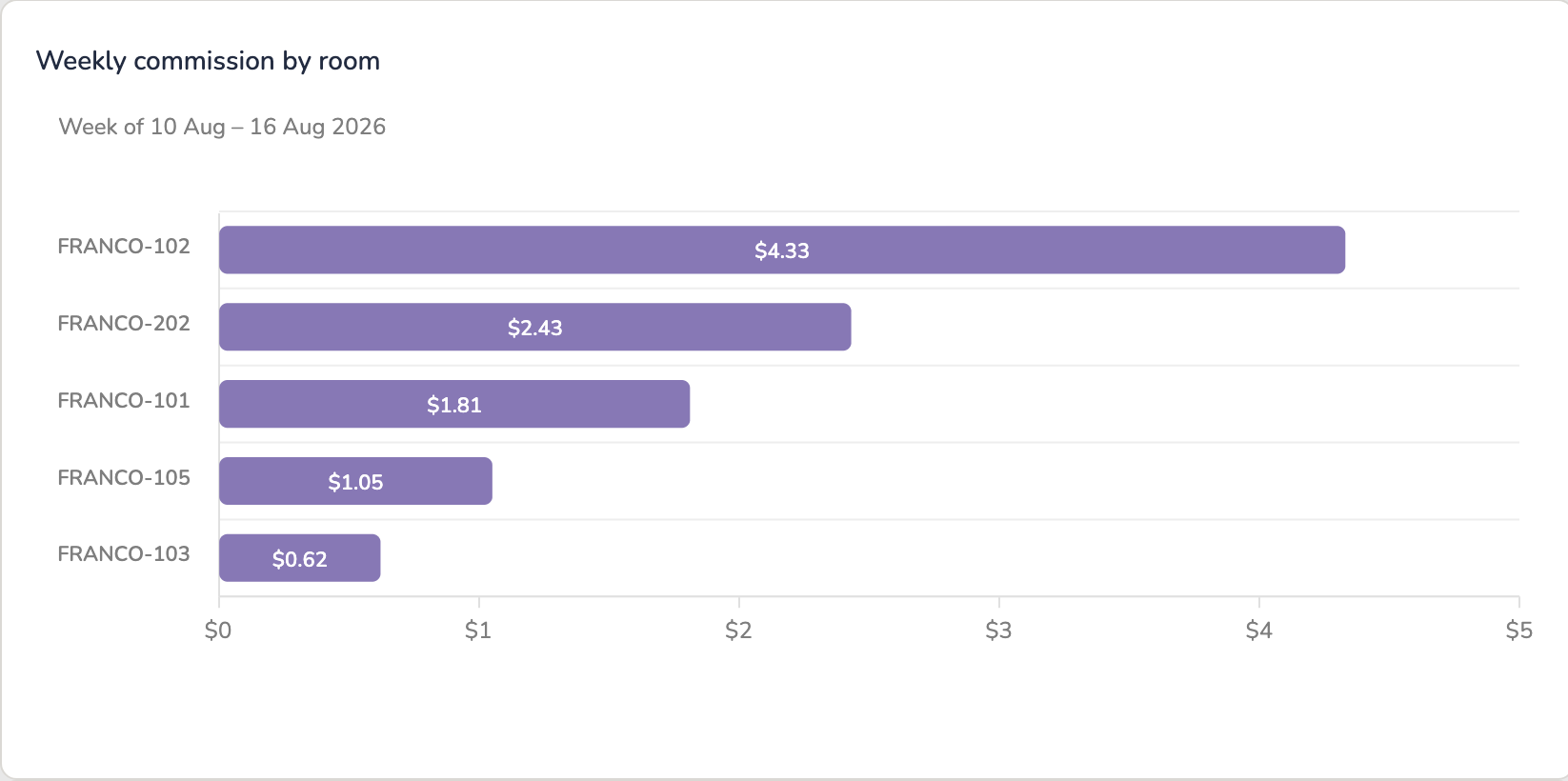
One bar per room for the current week — Monday to Sunday, the same weeks as the owner statements — ranked so the units driving this week's commission sit at the top. The week it is showing is named just above the bars.
Together with the monthly chart and the by-year doughnut below it, the dashboard reads at every pace: weekly, monthly and by year.
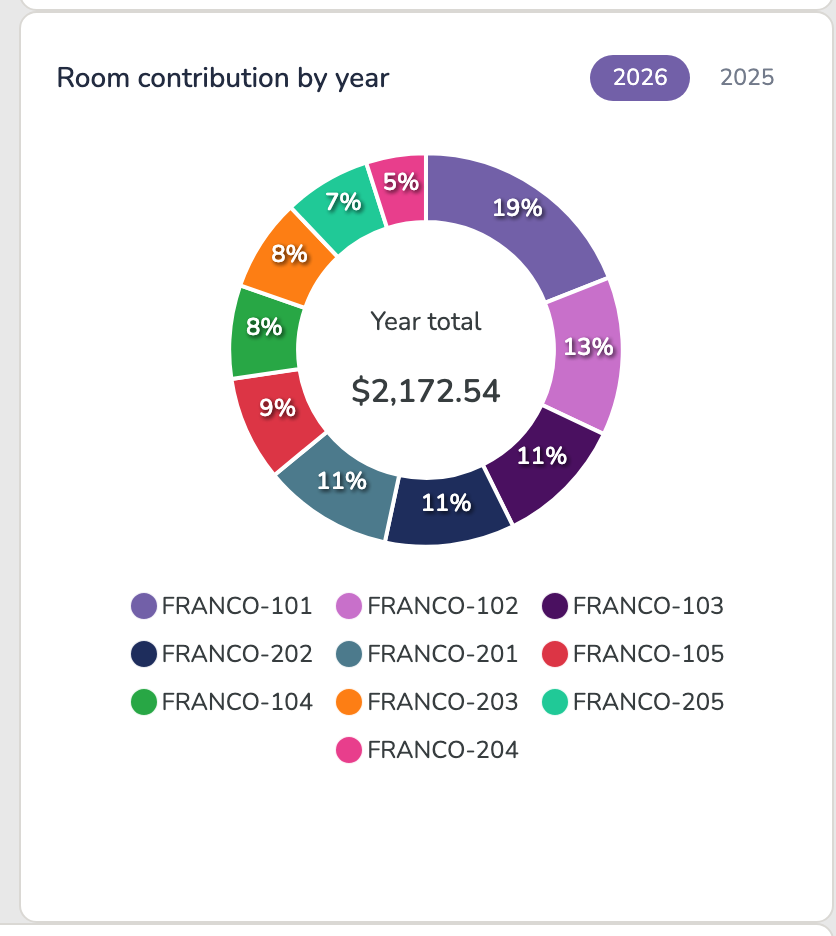
The same earnings shown as each room's share of the total, for a chosen year. Use the year tabs above the chart to switch between years.
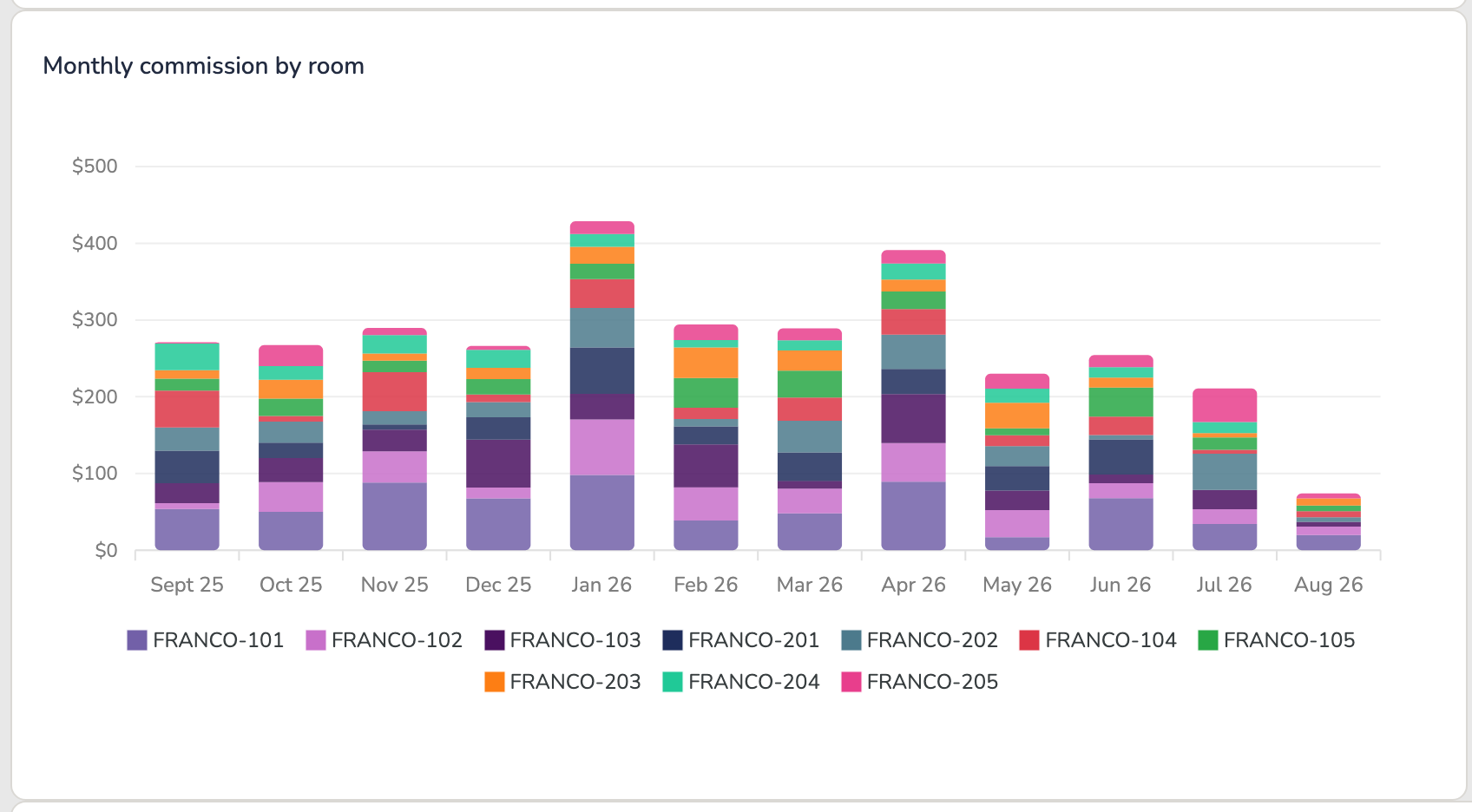
Each month's total commission, broken into colored segments by room. The height is the month's total; each color is one room's contribution to it.
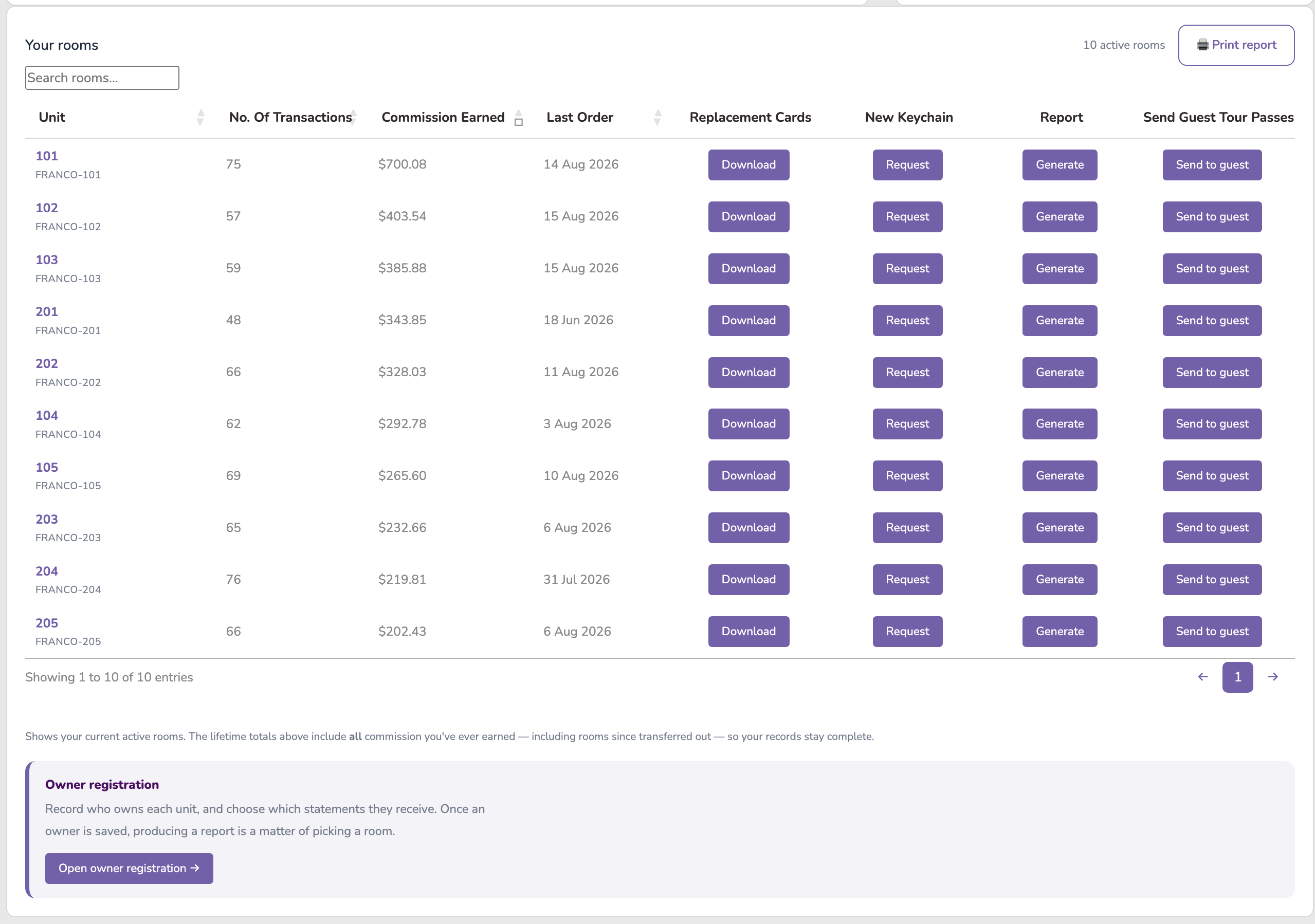
A table of your active rooms showing the room code, unit, number of transactions, commission earned and the last order date — then three things you can do for that room:
| Replacement Cards | Download gives you that room's printable discount card (the QR guests scan). Print it yourself, any time. |
| New keychain | Request asks us for a replacement keychain insert — for one that's damaged, faded, or went swimming with a guest. One click, nothing to fill in. |
| Report | Generate opens a date picker. Choose any period — a stay, a month, a quarter — and it produces a shareable report for that room. See below. |
| Send guest tour passes | Send to guest opens the tour-pass form for that room. See section 12. |
Click any row to open that room's own detail page. Open your rooms on the dashboard ↗
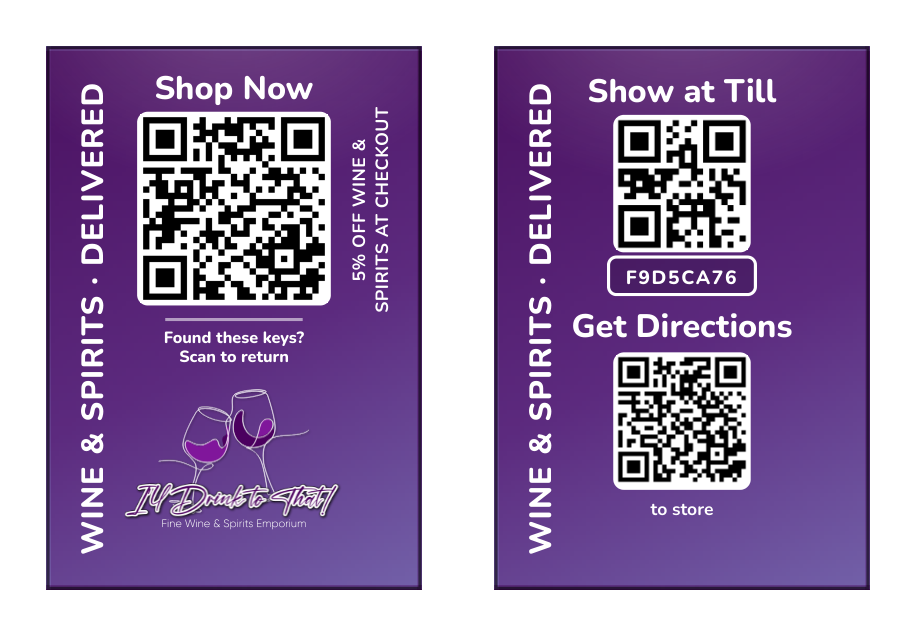
Every unit’s keys carry one of these (pictured opposite) — and it is deliberately anonymous: no complex name, no unit number, nothing that tells a stranger which door the keys open. The front QR takes a guest straight to the shop with the room’s discount ready to apply; the back carries the code for the till, plus directions to the store.
Plenty of buildings don’t think in unit numbers — a villa has a name, a listing has its booking-platform reference, an office has its own numbering. The Room key legend page ↗ has a Custom referral identifier column for exactly that: press Edit, type your own reference against any room, and Save. It shows on the legend on screen and comes along when you print it.
It is a label, nothing more — it never changes the room’s code, its discount, or anything a guest sees. Use whatever helps your team match our codes to the names you actually use day to day.
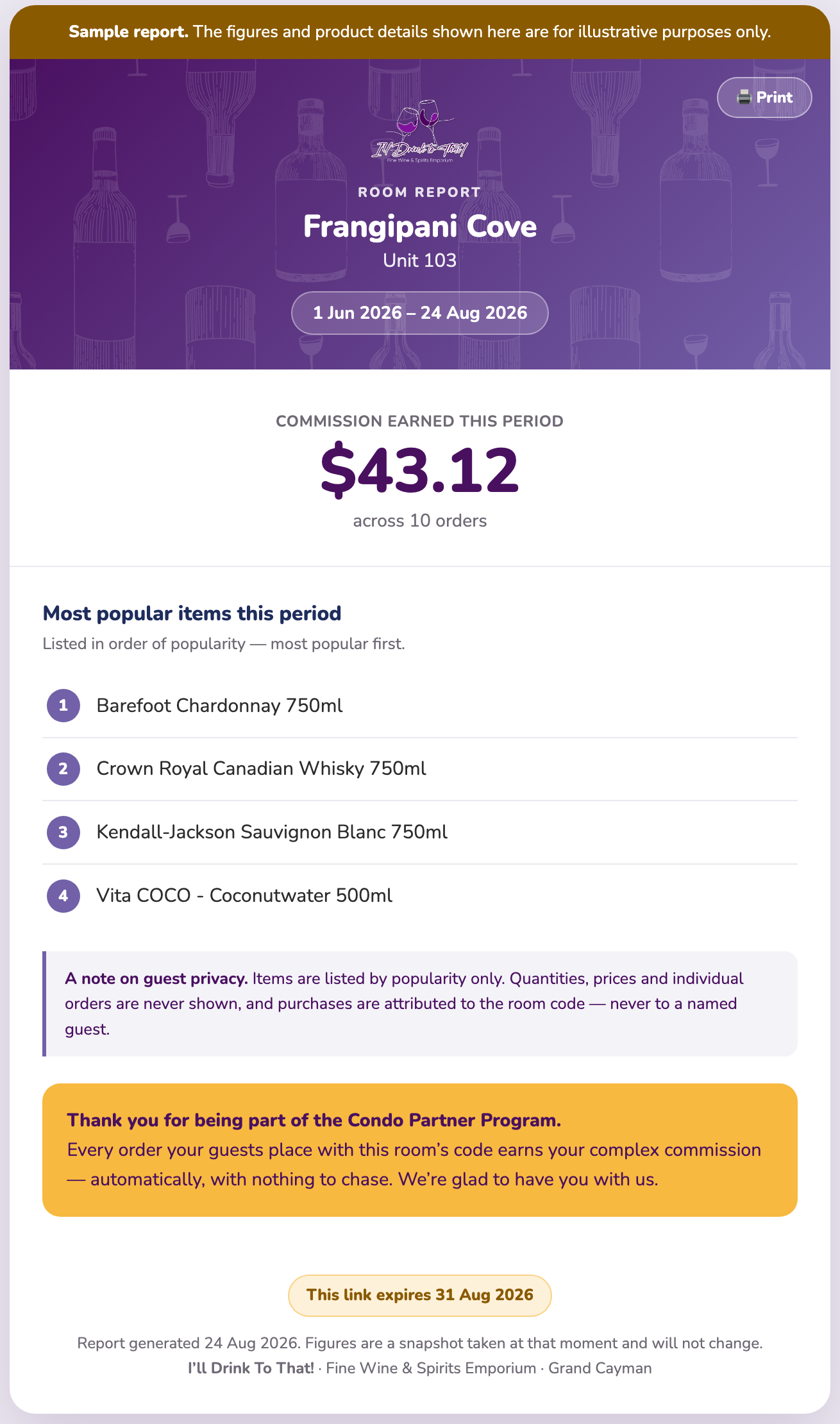
Scheduled statements (weekly, monthly, quarterly, yearly) are set per owner on Owner registration. This is different: a custom report for any dates you like. Click Generate in the Custom report column, pick a From and To date, and you’ll get a report for that room covering exactly that period — the commission it earned, how many orders it came from, and the five items its guests bought most.
Generating a report simply opens it so you can read it — nothing is emailed automatically, because often you just want to look. Each report is its own web page with a link that needs no login. From the report view, a toolbar at the top lets you Print it, or email it with one deliberate tap: Email to office or Email to owner (the owner button appears only when an email is on file). Each email button asks you to confirm once before it sends, so a report you only meant to view never goes out.
You can also produce one from inside a room: open the room, set the Filter by date range on Order history, and click 🔗 Generate shareable report. Same report, reached from wherever you happen to be.
Two reports, two jobs. 🖨 Print report gives you the full order listing — every transaction in the range, line by line, for your files. 🔗 Generate shareable report gives you the summary page — commission, order count and top five items — on a link you can send to an owner. The shared page has its own Print button too, so a recipient can put it on paper.
Click Request and the button changes to ✓ Requested. That's the whole job — there's no form, no email to write, and nothing to chase.
✓ Requested
The moment you click, our team gets the request — with your complex and the room already on it, and that room's keychain artwork attached ready to print. We print it, cut it, and deliver it to you. You don't need to tell us which room it was or what it looked like; we already have it.
Opening a room shows its own page: the room's lifetime commission, a monthly earnings chart just for that room, and its full order history (date, order, commission and status).
Above the order history you'll find a From / To date filter — pick a start and/or end date to show only the orders in that range (handy for checking a specific month or quarter), and tap Clear to see everything again.
You can also tap 🖨 Print report to print (or save as PDF) a clean statement of the orders in your chosen range, with the total commission. A date range is required before printing, so the report stays focused rather than listing every order ever.
Use ← Back to dashboard at the top-left to return to your main page.
On any room's page you'll find Guest purchases & product preferences. Pick the From and To dates of a stay, tap Show purchases, and you'll see the products bought with that room's code during those dates.
The report lists the top five different items from that period, most popular first. It's there to help you spot what a guest enjoyed — so when they book again, you can have their favourite waiting for them.
Your guests can claim a complimentary tour pass for a partner tour. To send one, open the Your rooms table and click Send to guest in the Send guest tour passes column for the room your guest is staying in (you can also do this from that room's own page).
A short form pops up, already filled in with your complex and the room number — add the guest's name, email and stay dates, pick the tour, and send. The pass is then built and emailed straight to the guest: a branded pass with its own QR code, valid from their check-in to their check-out.
At the tour, the pass does the talking. The guest shows it on their phone (or printed), the tour partner verifies it at the door, and it is marked as used there and then. Each pass is good for one redemption — once used it can't be presented a second time, and one that never gets used simply expires on its own when the stay ends. Nothing to cancel, nothing to chase.
Send one from your rooms table ↗
A room can only have one live tour pass. While a guest is holding one, that room's button is replaced by an amber Blocked chip showing the date it frees up:
Blocked · until 18 Aug 2026
A tour pass is valid for that guest's stay. Once the stay is over the button returns by itself and the next guest can be sent one — there is nothing for you to clear down, and no need to contact us.
Only the room holding a pass is affected. Every other room stays available, so a full building is never held up by one guest.
You earn 5% commission on commissionable items only — wines, spirits, and other selected products — purchased with your room codes. It is not earned on the full order total or on non-commissionable products. Your commission is deposited to your store credit balance automatically — usually within minutes — and you can spend it at checkout just like store credit.
Your complex can also cash out part of its balance: up to 20% of the total redeemable commission, paid by cheque, with the rest staying as store credit. The Total redeemable in cash figure under your Current balance tracks exactly how much.
Your commission is store credit — it is spent against goods rather than converted to cash, which keeps your account simple to run. That's why there is no cash figure on your dashboard.
Room codes are for your guests. Each code belongs to one unit and is meant for the people staying in it. Please don't post codes publicly — on social media, a rental listing or a community group — or share them outside your complex. Beyond being unfair to other partners, it fills your own dashboard and reports with purchases that were never your guests', so the numbers stop telling you anything useful. Section 18 of the terms covers this.
Why this exists. The commission your pool earns is made up of what each unit's guests spend. Owners want to know what their own unit is contributing — and answering that by hand, unit by unit, every month, is the kind of job that quietly stops getting done.
So the system does it. But to send an owner anything, it has to know who they are and which unit is theirs. Owner registration is where you tell it. Everything else on this page follows from that one record.
For their reporting it is purely a record for your office — no owner is ever chased to fill in a statement form: you enter their details, and you decide what they receive. That conversation stays between you and them. (Joining or leaving the pool itself is different — those changes the owner does confirm by email, and section 15 walks through every step.)
Open Owner registration ↗ from the top of your dashboard, or from beneath Your rooms. Enter a first name, last name and email against a unit and press Save. That is the whole job.
From then on the unit knows where its reporting goes. Producing a statement becomes a matter of picking a room rather than looking up an address, and the header tells you at a glance how many units still need an owner — “31 of 40 with an owner”.
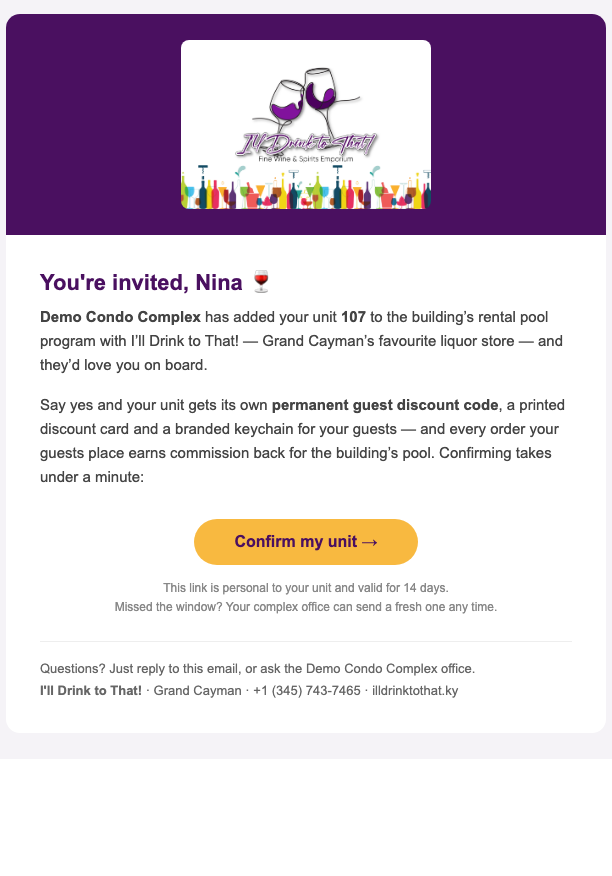
Units that joined through a pool invitation (section 15) arrive here with the owner’s details already saved — for those, your only job is choosing which statements they receive.
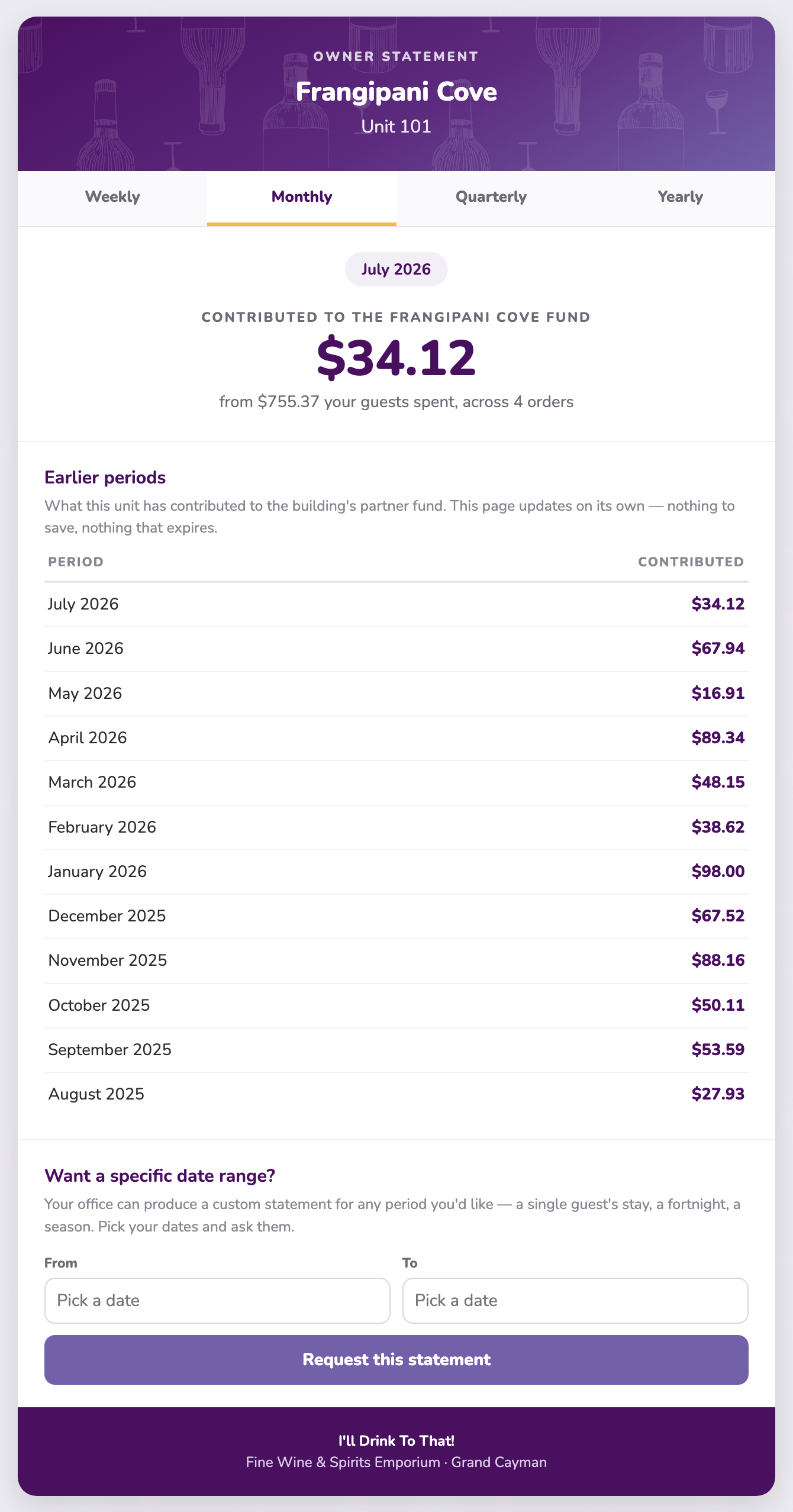
An owner's statement shows, for the period in question: what their unit contributed to the pooled commission, how much their guests spent to generate it, and the items those guests bought most. Underneath sits the same figure for every earlier period, so they can see a season take shape.
It is deliberately framed as a contribution to the pool, not as a private balance. The commission belongs to the complex; the statement shows an owner what their unit brought to it. How the complex uses that income is a matter for the complex, and the page says nothing about it.
Each registered unit gets its own permanent statement page on a private link. It shows what that unit contributed over the period, the items its guests bought most, and the periods before it. There is no login and nothing to install, and the page updates itself — so a link you send once keeps working.
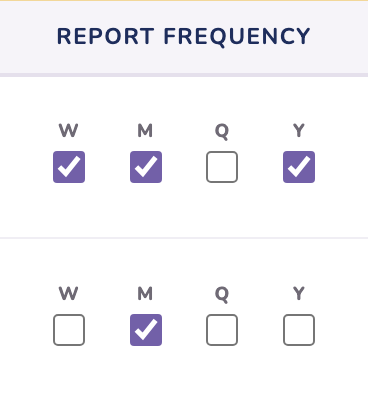
You choose which periods appear. Weekly, monthly, quarterly and yearly are independent ticks, so an owner can have weekly and yearly and nothing else. Tick one later and that view simply appears on their page. Untick them all and the page still works — it just shows the one default view.
Open Owner registration, click Edit on that unit and update the details. Correcting a spelling is Save edits and changes nothing else. Changing the email address is treated as a change of owner: the only option is Save & resend, which issues a new statement link and retires the old one immediately, so a former owner cannot keep seeing a unit they no longer own.
An owner can ask for a statement covering any dates they like, straight from their own page. The request arrives as a notice on your dashboard with the unit and the dates already filled in — you generate it from that room's Order history in the usual way and the link goes to them.
Why this exists. A rental pool is not a fixed list. Owners join the building, owners move on, and some run their unit themselves for a while before coming round. Membership is the machinery for all of that — and it runs from the same Owner registration page you already know. You start each change from your roster; the owner confirms it by email; the system builds or retires everything else on its own.
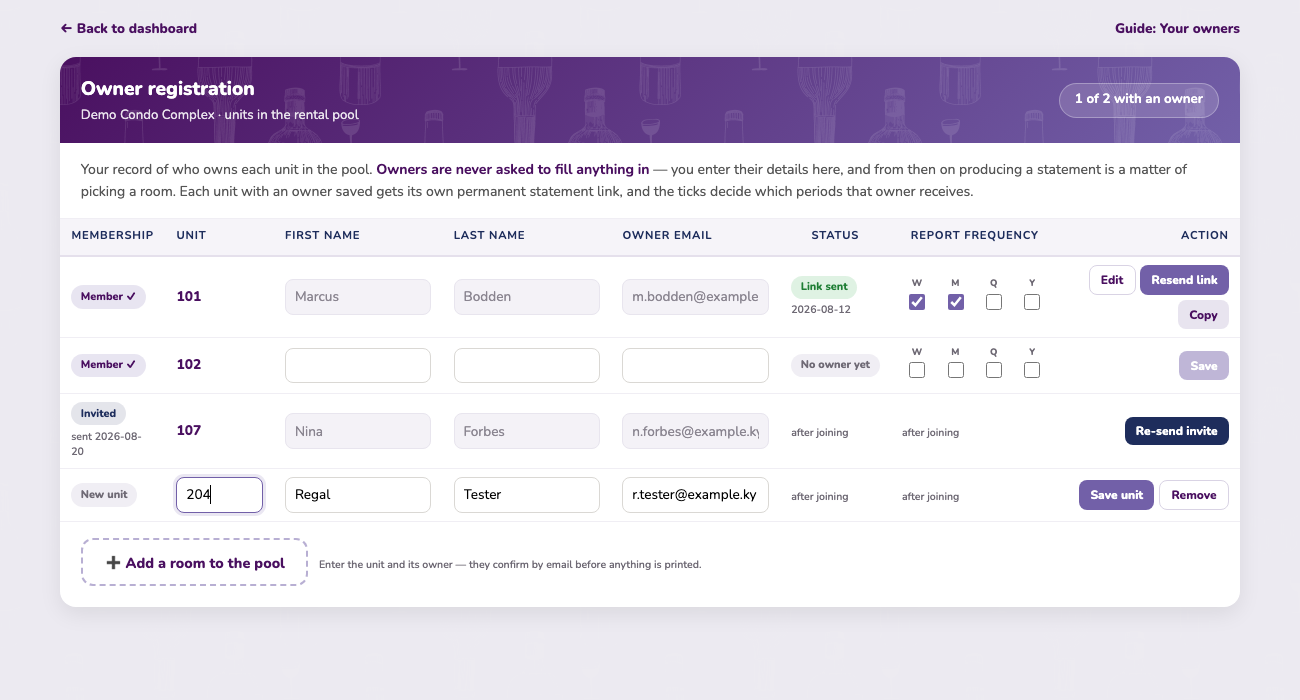
Two different notes can appear under a unit you’re adding, and they mean different things:
| Red note | The unit already has a live seat on your account — a member, a pending invitation, or a suspended removal. Nothing to add; it’s already yours. |
| Amber note | The unit’s owner registered it self-managed, directly with the store. It keeps its own earning history, so it can’t simply be re-added — but the note carries a button to invite the owner to move it into the pool. |
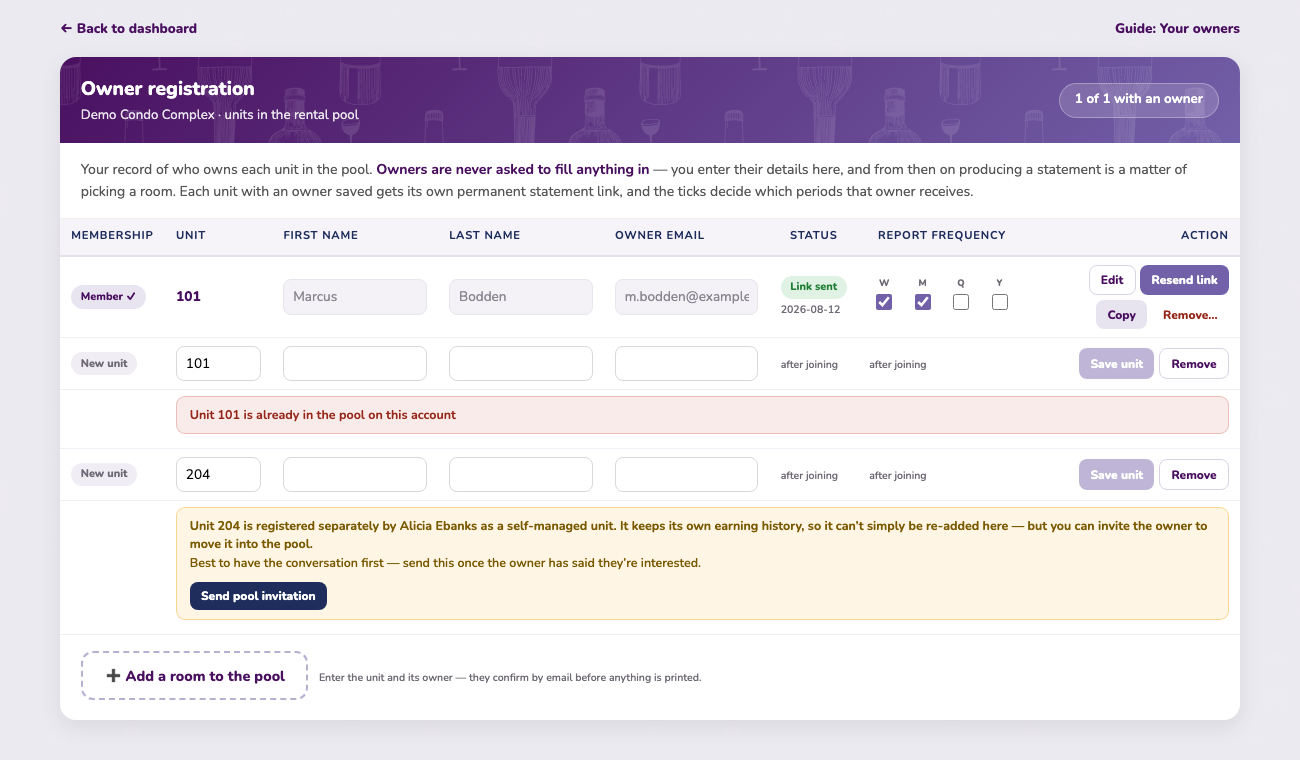
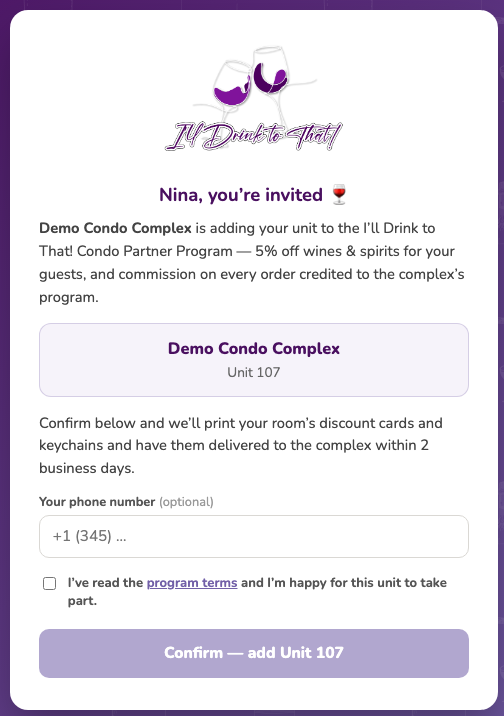
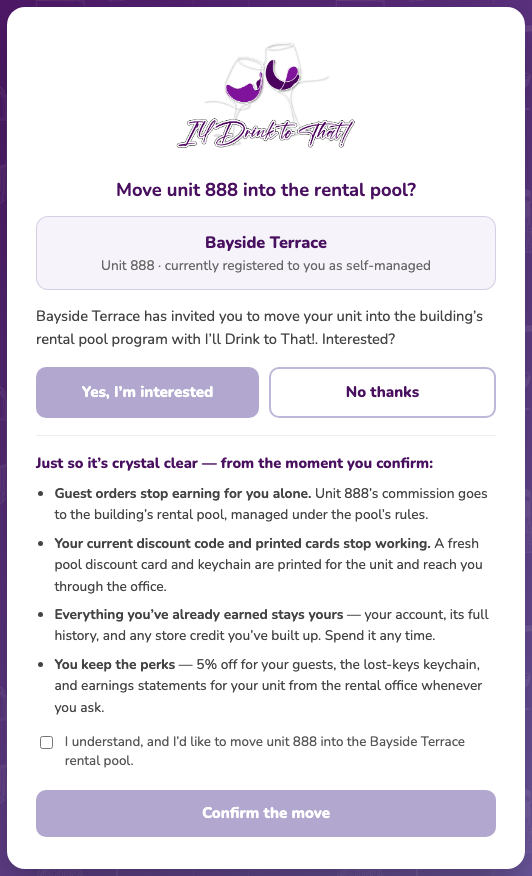
Have the conversation first — the note reminds you — then press Send pool invitation. The owner’s consent page spells out exactly what changes: commission goes to the pool from that moment, their old code and printed cards stop working and are replaced with fresh pool ones through your office, and everything they earned while self-managed stays theirs — their account, its history, their store credit. One tick, one confirm, and the unit appears on your roster as a full member with everything already built. You never touch a thing — a notice lands on your dashboard the moment they accept, so you know the second it happens.
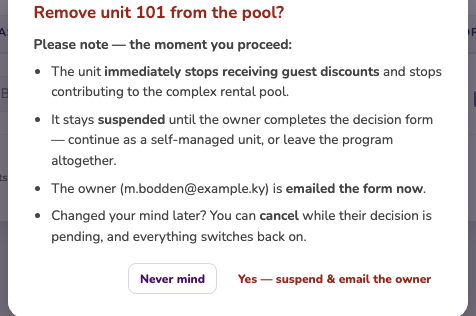
Whether the owner asked to leave or your office is initiating it, the route is the same: press Remove… on the unit’s row. A confirmation box makes you pause, because proceeding takes effect immediately:
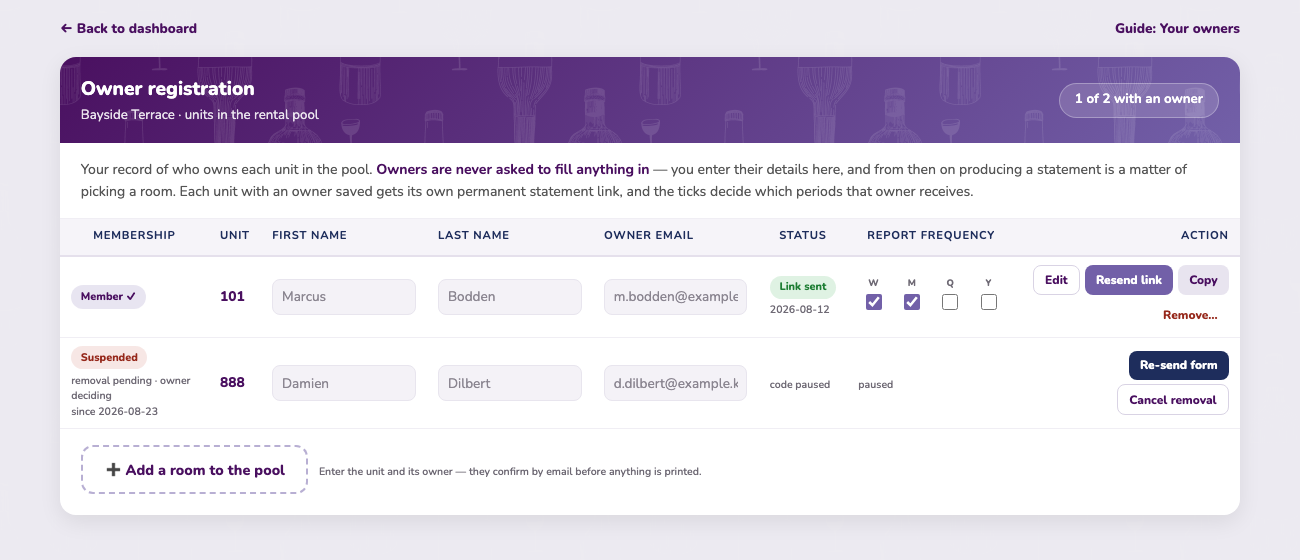
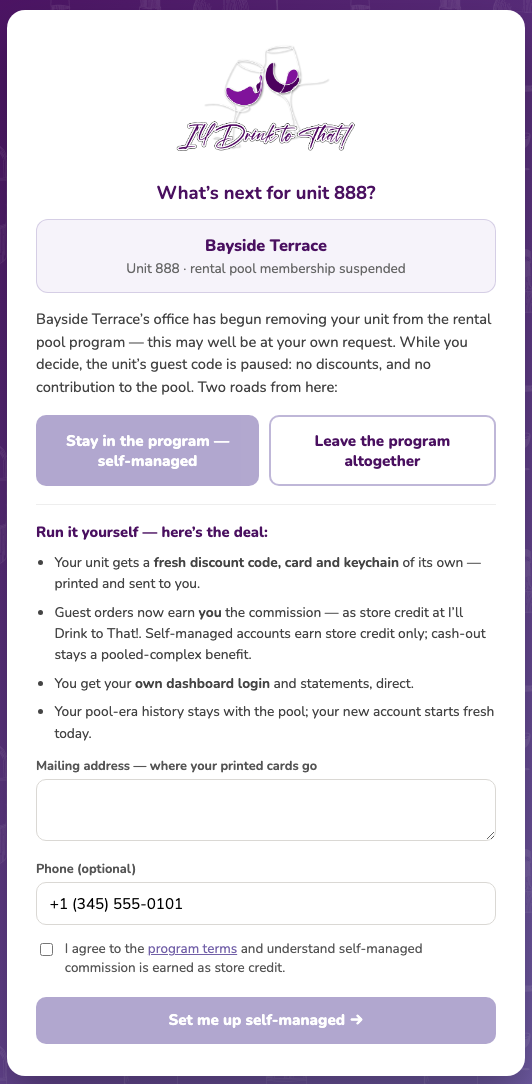
If they choose self-managed, the system builds their entire solo setup — their own code, card, keychain and login — and your pool keeps every cent it earned to date. If they choose to leave altogether, that’s that: a clean exit, nothing owed in either direction, and they’re welcome back any time. Either way, a notice tells you on the dashboard the moment they decide.
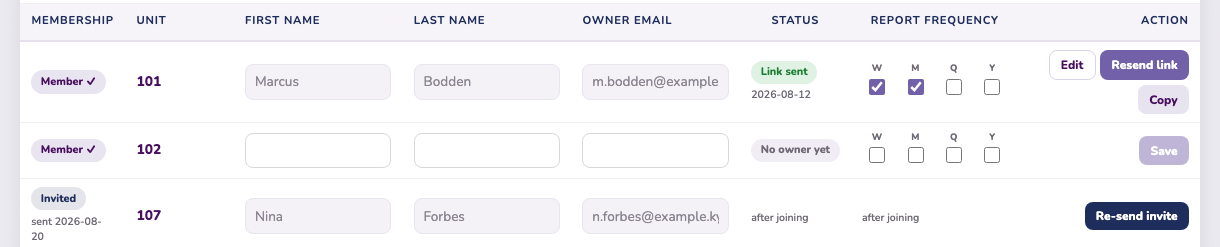
| Member ✓ | A full member. Its code earns for the pool, and everything in this guide applies to it. |
| New unit | A seat you’re still typing — nothing is saved until you press Save unit. |
| Invited | Saved and waiting on the owner’s email confirmation. Not printed, not earning, not on the legend yet. |
| Suspended | A removal is in progress: discounts and pool contribution are paused while the owner decides. Re-send the form or cancel at any time. |
Pre-ordering at the time of booking. We’re working on connecting our store to the booking systems complexes already use. Once a guest confirms their stay with you, they’ll be able to browse our range and place an order in advance — without leaving the booking process.
Their order is then delivered to the unit for their arrival, so the fridge is stocked before they walk through the door — no shopping trip on day one of the holiday.
Questions about your account, a transaction, or anything on the dashboard? Contact the I'll Drink To That! team and we'll be glad to help.